Hugs the notch
Cue finds your notch and camera, then hangs just below them, above the menu bar. No notch? It sits right under the camera. Or float it anywhere.
 Cue
Cue
A teleprompter that lives in your notch
Cue puts your notes right under your MacBook camera, so on video calls and livestreams you look at the people you're talking to, not at a second window. It scrolls when you speak, pauses when you stop, and stays out of your screen shares.
Free · macOS 12+ · Apple Silicon · 2.4 MB · No account, no network
The prompter hangs from the notch, right under the camera. Your eyes stay where the lens is.
Everything a teleprompter needs to be when you can't afford to look away.
Cue finds your notch and camera, then hangs just below them, above the menu bar. No notch? It sits right under the camera. Or float it anywhere.
Voice mode listens to your mic level and moves only while you talk, easing to a stop when you pause. It ignores fans and room noise. Constant and manual modes are there too.
The overlay is excluded from screen capture, so you can share your whole screen and the people on the call won't see your notes.
It stays on top of everything, full-screen calls and every Space included, without ever taking keyboard focus from your call app.
Play, pause, speed up, jump a sentence or restart while your call app is focused. Every shortcut can be changed.
No account, no analytics, no network requests. Audio levels are measured on your Mac and never recorded. Scripts stay on your disk.
Share your entire screen: you see the prompter, and the people on the call don't.
We tested this on macOS 26 with ScreenCaptureKit, the capture system that Zoom, Teams, Meet in Chrome, OBS and QuickTime use. Capture behavior can vary between apps and macOS versions, so try it once with your own setup. The safest option is always to share a single window instead of the whole screen.
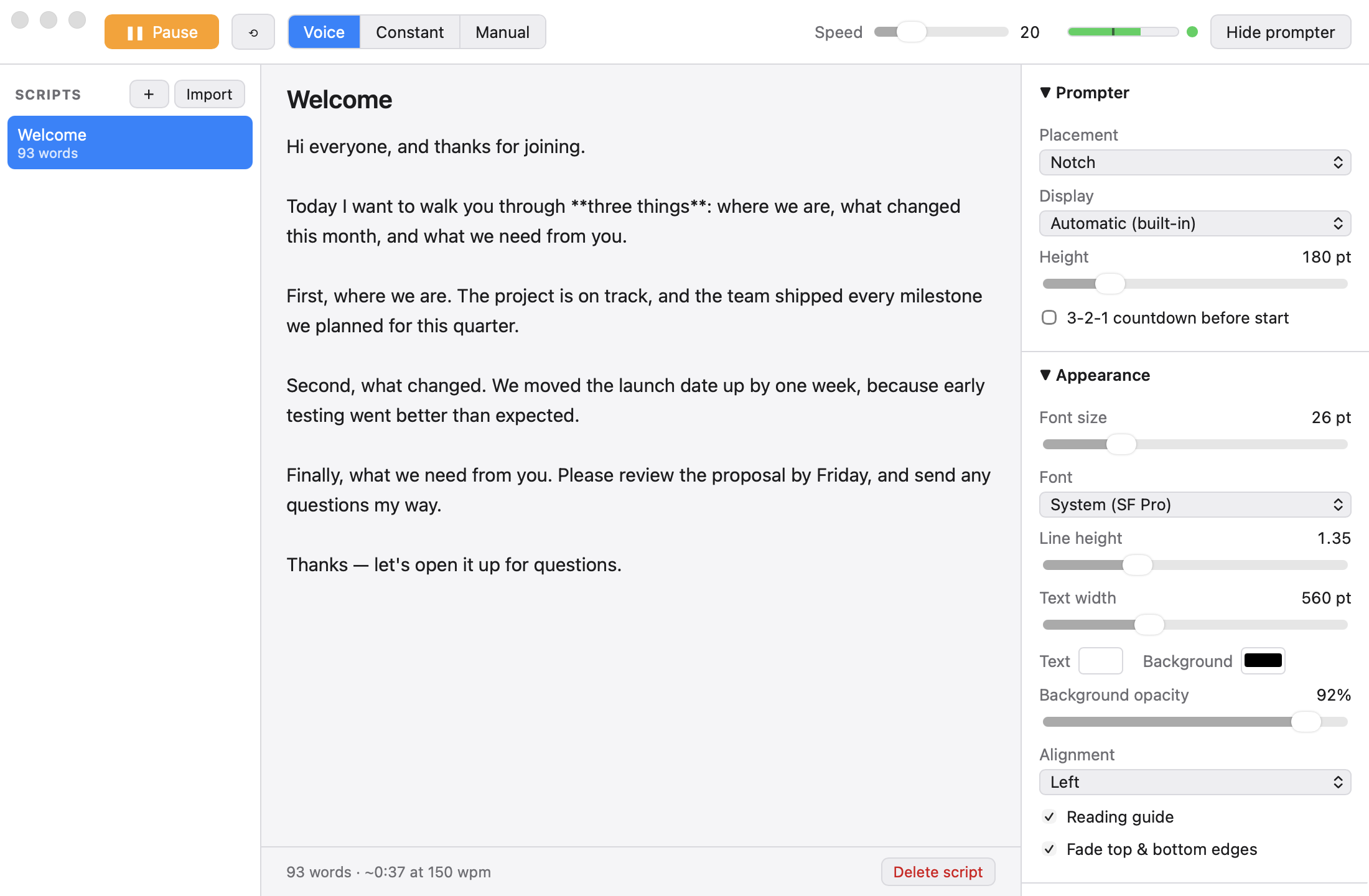
A simple editor with **bold** emphasis and paragraph breaks as pause markers.
Import .txt and .md files, keep as many scripts as you like, and every
script remembers where you stopped. Font, size, width, colors, opacity, a reading guide, edge
fades and a 3-2-1 countdown all preview live on the prompter.
Global shortcuts work while your call app is in front. The defaults avoid clashing with system text selection and with Zoom and Teams.
Get the latest release, open the .dmg, and drag Cue into Applications.
Cue isn't notarized by Apple yet, so macOS may block the first launch. Right-click Cue → Open → Open, or go to System Settings → Privacy & Security and click Open Anyway.
When you first use Voice mode, click Allow. Cue only measures loudness to decide when to scroll. Nothing is recorded or sent anywhere.
Using an Intel Mac, or want to build it yourself? Cue is a small Tauri app:
npm install && npm run tauri build. See the
README for details.